Week 1: Introduction
1. Sign up for MMSCL 2.0
2. Read this blog and learn more about the program
Week 2: Blogging
3. Set up a blog to record your progress and thoughts
4. Twittering & Microblogging
Week 3: Social Networking and Tags
5. MySpace & Facebook
6. Learn about tagging and discover Delicious
7. The Power of Library Thing
Week 4: Photos, Videos & Downloadable Audio
8. Find an interesting video on YouTube
9. Exploring Flickr
10. Surfing SuffolkWave
Week 5: RSS and Newsreaders
11. What is RSS and why do I want to use it?
12. Discovering feeds on our catalog and website
13. Finding new feeds
Week 6: Wikis, Online Applications and Tools
14. What’s a Wiki?
15. Take a look at GoogleDocs and discover a world beyond MS Office.
16. Craigslist: Your guide to online classifieds
17. Summarize your thoughts on the MMSCL 2.0 program in your blog and visit the staff page to submit this exercise as described in exercise #1. Don't forget to add a link to your blog posting.
Congratulations on completing the MMSCL 2.0 Program!
This is just the tip of the 2.0 iceberg, so don't let it stop you from continuing to explore other great 2.0 tools (as a matter of fact, feel free to post any good ones you think we missed in the comments section of this blog posting). Hopefully you have a better understanding of some of the most popular tools that help you interact and form communities on the internet.
__________________________________________________
Recording Progress:
Recording progress on the staff page is as easy as cut-n-paste.
First you'll need to sign up. This will be covered in the directions for activity #1.
For the first two activities, just check off the appropriate check box as discussed in "Sign up for MMSCL 2.0". Once you start recording your discoveries through your own blog (activity #3), you will need to check-off the item and enter the permanent link to the individual blog post that covers the exercise or "thing."
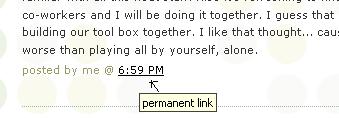
Depending upon the Blogger template that you selected, the "permanent link" for each individual post can be found either through the post’s title or through a link in the posts footer area the contains the date.
To record progress for an individual item on the Staff Page:
- Log in to your blogger.com account that you created in activity #3.
- Click on the permanent link for the individual post.
Example:
Here is where you would find the perma link for this sample blog post: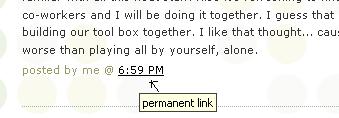
Click on this link to see actual post. - Select the "permanent link" url from the address bar at the top of your browser and right click. Select Copy.
- Follow the instructions from item #1: Sign up for MMSCL 2.0.
- Right click on the address line for the item and select Paste.
See, it's as easy and copy-n-paste!
Your staff information page should now show a light grey "OK" image. After your activity has been reviewed and approved, the "OK" image will turn purple.


No comments:
Post a Comment